
Getting Started
Reviewed for FREE 2.3.2 and PRO 1.7.1
Do not configure the whole site at once. Install FREE and begin with one page whose title, URL or saved wording genuinely matters.
That first monitor tells you more than a long feature list: you will see what the plugin checks, what it deliberately ignores and whether the model fits your site.
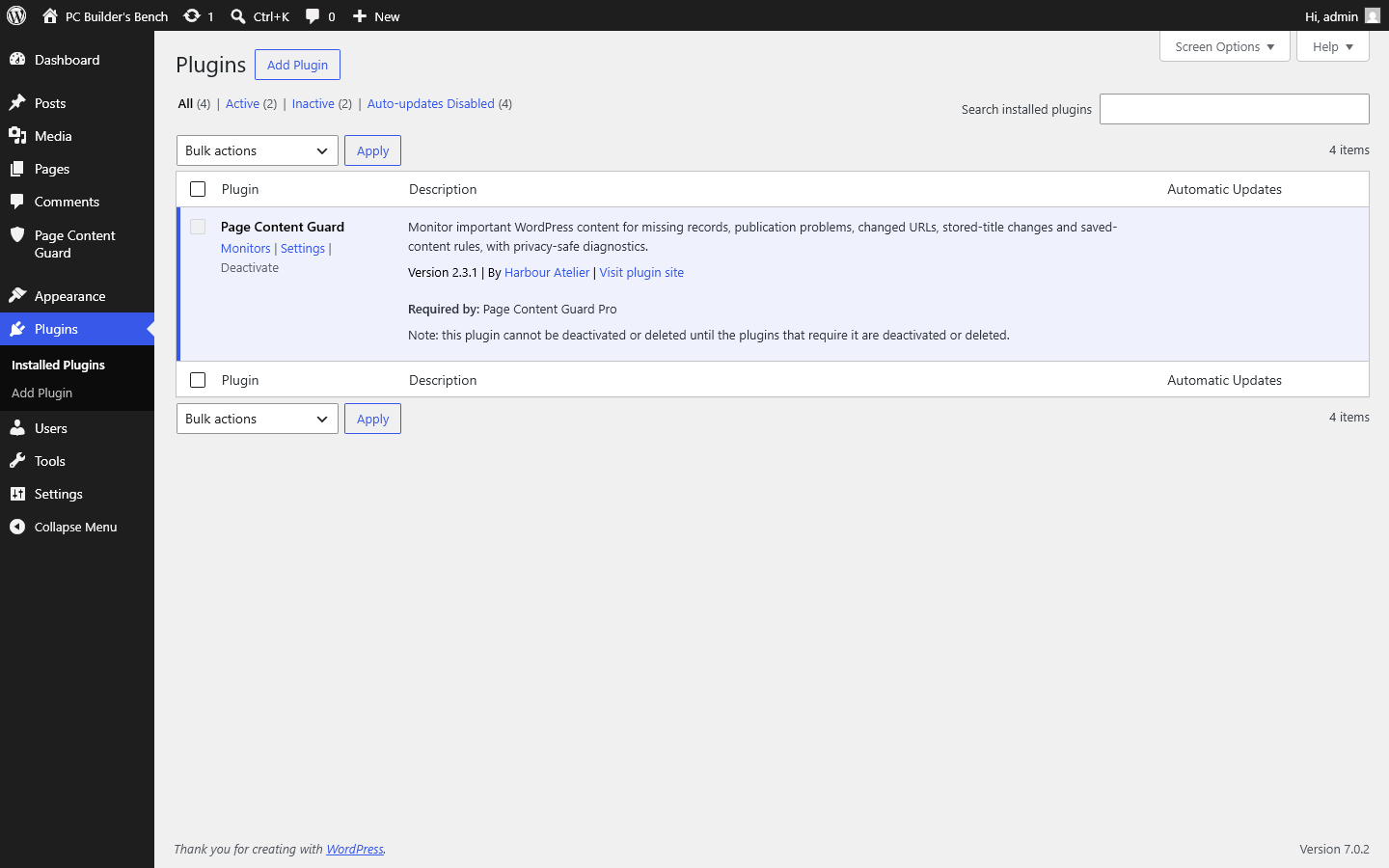
Before installation
Before installing, check these four things:
- WordPress 6.5 or newer
- PHP 7.4 or newer
- activation on an individual WordPress site
- an administrator account with permission to manage plugin settings
Network-wide Multisite activation is not supported. If Multisite is used, activate the plugin separately on the intended site.
Page Content Guard can select pages, posts and eligible public custom post types. It is not a general URL monitor.
Install the FREE plugin
WordPress.org publication pending
The FREE plugin is not yet publicly downloadable from WordPress.org. Once publication is complete, you will be able to install it directly from WordPress or upload the official ZIP.
Install from WordPress.org after publication
Steps
- In WordPress, open Plugins > Add New Plugin.
- Search for "Page Content Guard".
- Check that the publisher is Harbour Atelier.
- Select "Install Now".
- Select "Activate".
- Open Page Content Guard > Monitors.
Upload a FREE ZIP after publication
Steps
- Download the current Page Content Guard ZIP from WordPress.org.
- In WordPress, open Plugins > Add New Plugin > Upload Plugin.
- Choose the ZIP file.
- Select "Install Now".
- Activate Page Content Guard.
- Open Page Content Guard > Monitors.
Expected Result
The Page Content Guard menu appears in WordPress administration. No default monitors are created.
Create the first monitor
Use content that matters, but keep the first setup simple. A contact page, homepage or main service page is easier to understand than a page driven entirely by dynamic builder data.
Steps
- Open Page Content Guard > Monitors.
- Select "Add Monitor".
- Search for the content item.
- Select the correct published record.
- Review the current URL preview.
- Leave publication status monitoring enabled.
- Enable URL monitoring if the address should remain stable.
- Enable blank-content checking only if standard WordPress content is expected to contain meaningful content.
- Add one required fragment if there is a specific saved phrase, URL or shortcode that must remain present.
- Enable title integrity only if an exact stored title matters.
- Select "Save & Check".
Expected Result
The monitor is saved and checked immediately. You should see one of four states:
OK
Every enabled condition passed.
Problem
At least one configured condition failed.
Unchecked
The monitor exists but has not completed a check.
Paused
The configuration is preserved, but the monitor is not included in normal checking.
Choose checks that match the content
More checks are not automatically better.
A monitor is useful when each rule has a reason. If a page builder stores visible content outside standard post_content, a fragment rule may create false confidence or confusing results. If a title changes regularly, an exact-title baseline may create unnecessary work.
Start with publication status and expected URL. Add content rules only where the stored data is understood.
Run a manual check
To check one monitor:
- Open Page Content Guard > Monitors.
- Find the monitor.
- Open its row actions.
- Select "Check now".
To check all non-paused monitors:
- Open Page Content Guard > Monitors.
- Select "Check all monitors".
- Wait for the completion result.
A manual check reads the current WordPress record and updates Current Problems. It does not load the public page.
What happens after a WordPress edit
FREE can check a monitored item after relevant WordPress content changes.
For example, if an editor removes a required fragment and saves the post, Page Content Guard can open a current problem without waiting for a manual bulk check.
This event-driven behaviour is not the same as scheduled monitoring. If content changes outside the relevant WordPress events or the site needs periodic checks, PRO scheduling is the appropriate feature.
Open Current Problems
Steps
- Open Page Content Guard > Problems.
- Find the affected monitor.
- Read the issue description and stored context.
- Use the relevant action:
- edit the content
- restore publication status
- restore the old URL
- accept an intentional current URL
- accept an intentional current title or PRO baseline
- edit or pause the monitor
- Run a fresh check.
A problem disappears after a successful check confirms that the condition now passes.
Pause a monitor
Pause a monitor during planned work when temporary changes would create noise.
Pausing preserves:
- monitor configuration
- current issue state
- accepted baselines
- PRO history
A paused monitor is not included in normal checks.
To pause:
- Open Page Content Guard > Monitors.
- Open the monitor row actions.
- Select "Pause monitor".
- Confirm if WordPress asks for confirmation.
Resume it from the same row when the planned work is complete, then run a check.
Edit or delete a monitor
Editing changes the checks applied to the same WordPress content record.
Saving the monitor does not silently accept an active exact-value baseline. Use the explicit acceptance action when an intentional title or PRO integrity change should become the new baseline.
Deleting a monitor removes that monitor and its current issue state.
It does not delete the WordPress page or post.
If PRO history exists, historical behaviour follows the documented PRO data rules. Do not use monitor deletion as a substitute for resolving a site problem.
Add PRO later
PRO can be installed after FREE has already been used.
The existing monitors remain. PRO adds its controls beside the related FREE controls and adds its own History, Bulk Setup and Settings behaviour.
You do not need to recreate the monitors.
First-monitor checklist
Checklist
- The selected item is the correct WordPress record.
- The current URL preview is expected.
- Publication status monitoring is enabled.
- Blank-content checking matches how the page stores content.
- Required fragments use exact text that is stable.
- Title integrity is enabled only if exact title changes matter.
- "Save & Check" produced an understandable result.
- The monitor appears in the Monitors list.
- Current Problems is empty or the initial problem has been reviewed.
Monitors and Checks
Reviewed for FREE 2.3.2 and PRO 1.7.1
Before adding every available rule, decide what must remain true for this particular page.
Each monitor follows one WordPress content record by its ID and stores the conditions you accepted for it. It is not guessing from a title or loosely matching a URL.
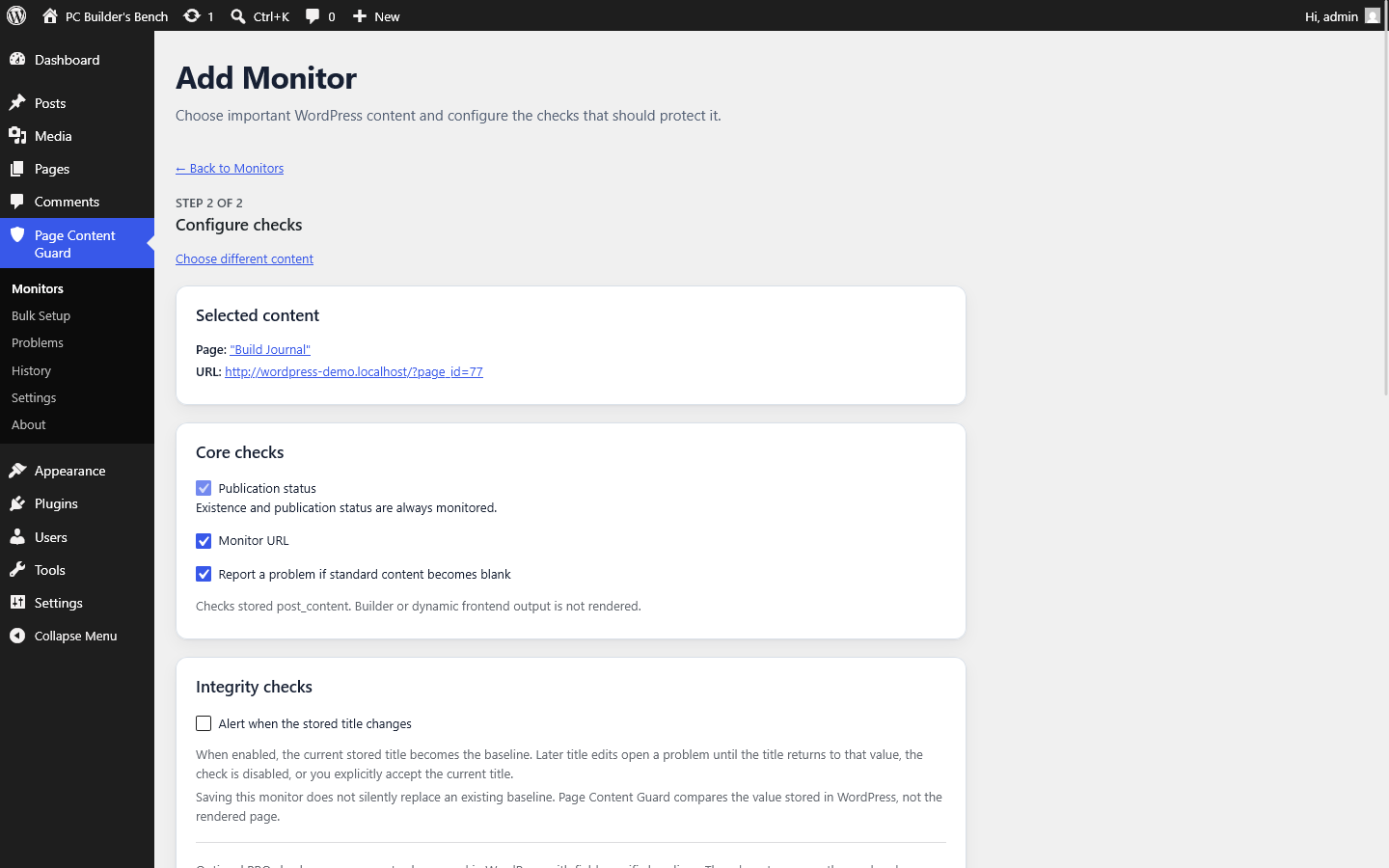
One monitor, one WordPress record
When a monitor is created, Page Content Guard keeps the WordPress content ID and enough retained context to explain a problem later.
If the target is permanently deleted, the monitor stays behind. It reports missing content using the retained title, content type and expected URL snapshots.
It does not automatically attach itself to another post with the same name or address. That would hide the deletion and could monitor the wrong content.
Monitor states
State
OK
The latest completed check found no current issue for the enabled conditions.
State
Problem
At least one enabled condition failed. Open Current Problems for the details.
State
Unchecked
The monitor has not completed a check yet, or no usable result is available.
State
Paused
The configuration is preserved, but the monitor is excluded from normal checking until resumed.
Publication status
Availability
FREE - always enabled
Publication status is the basic condition of every monitor.
A public page moved to draft, private or trash is no longer in the state the monitor expects. Page Content Guard reports that change.
This check does not inspect whether a visitor can reach the page through menus, search, permissions, redirects or cache. It reads the WordPress publication state.
Expected URL
Availability
FREE
When URL monitoring is enabled, Page Content Guard stores the accepted generated permalink.
A later permalink that differs from the accepted URL opens a URL problem.
Typical causes include:
- a changed slug
- a changed parent page
- permalink-setting changes
- a domain or protocol change after migration
- custom post type rewrite changes
- multilingual or routing changes
Resolution
If the change is accidental, restore the intended URL and check again.
If the change is deliberate, verify the new public environment first, then use "Accept current URL". The new generated permalink becomes the expected URL.
Do not accept a changed URL merely to clear the warning.
Pro Note
PRO adds "Accept All Current URLs" for verified multi-page migrations.
Blank standard content
Availability
FREE
This optional check reports when standard WordPress post_content is clearly blank.
It does not render blocks, execute shortcodes or inspect page-builder-specific fields.
A builder-managed page can look complete while post_content is empty. In that case, this check is not a reliable representation of the public page and should usually remain disabled.
Required content fragments
Availability
FREE - unlimited valid fragments
A required fragment is exact saved text that must remain present in standard post_content.
Useful examples can include:
- a stable sentence
- a destination URL
- a shortcode stored in post_content
- a required heading
- a contact detail
- a disclaimer fragment
The plugin checks literal stored content. It does not understand synonyms, equivalent wording or rendered output.
Rule Writing Guidance
Choose the smallest fragment that is specific enough to matter and stable enough not to create constant maintenance.
Too broad: "contact"
This could appear almost anywhere and prove very little.
Too fragile: A complete paragraph that editors change frequently.
A small punctuation edit may make the exact fragment disappear.
Better: A distinctive phrase, URL or shortcode that should remain unchanged.
Limitations
Required fragments:
- inspect standard post_content
- do not inspect arbitrary custom fields
- do not execute shortcodes
- do not see text generated later by a theme, block or external service
- do not confirm that the wording is legally correct
- remain active in FREE without a numerical plan limit
Stored-title integrity
Availability
FREE - optional and disabled by default
Title integrity records the exact title value currently stored by WordPress as the accepted baseline.
A later exact title change opens one stable problem.
Saving the monitor does not silently replace the baseline. The problem resolves when:
- the title returns exactly to the accepted value
- the title check is disabled
- an administrator explicitly accepts the current title as the new baseline
Use title integrity only where the exact title matters. It is not useful for content whose title changes routinely.
Wordpress Revisions
When the post still exists, revisions are enabled and the current user may edit it, Page Content Guard can show a link to the native WordPress revisions screen.
The revision link is context, not part of the monitoring decision. A missing revision does not disable the check.
Stored post_content integrity
Availability
PRO
This check creates a fingerprint of the exact standard post_content value accepted as the baseline.
The plugin does not copy the full post_content into the integrity baseline.
A later exact stored-value difference opens a content-integrity issue.
This is stricter than a required fragment. A fragment asks whether selected text is still present. Stored-content integrity asks whether the entire supported stored value is exactly the same.
Normal Changes Can Trigger It
- editing a block
- changing whitespace
- importing content
- WordPress block serialization changes
- replacing a shortcode
- changing markup without changing the visible wording
Use this check when exact stored content matters and somebody is prepared to review intentional edits.
Excerpt integrity
Availability
PRO
For content types that support excerpts, PRO can record the exact accepted stored excerpt.
A later change or removal opens an excerpt-integrity issue.
The plugin may retain a bounded display snapshot to make the problem understandable. It does not evaluate search snippets or the excerpt displayed by a theme.
Featured-image integrity
Availability
PRO
For content types that support featured images, PRO can record the accepted featured-image attachment ID.
A later changed or removed assignment opens a featured-image issue.
This does not compare the image file, generated crops, focal point or visible theme layout.
If the same attachment ID points to a replaced file, the assignment itself has not changed.
Forbidden content fragments
Availability
PRO
A forbidden fragment reports when selected text appears in standard post_content.
It can be useful for:
- temporary notices
- "coming soon" or placeholder wording
- staging URLs
- unwanted shortcodes
- internal notes accidentally pasted into content
- old campaign wording that should no longer appear
The rule is literal. It cannot decide whether the phrase is acceptable in one paragraph but not another.
Required and forbidden fragments can be used together, but each rule should have a clear purpose.
Accepting a current baseline
A baseline is supposed to resist silent change. For that reason, ordinary monitor saving does not update an active exact-value baseline.
When an intentional change is correct:
- Open Current Problems or the monitor editor.
- Review the current and accepted context.
- Use the acceptance action for that field.
- Confirm the action.
- Run or review the resulting check.
Accept only the field that changed. Page Content Guard keeps unrelated baselines unchanged.
Copying checks with Bulk Setup
Availability
PRO
Bulk Setup can create monitors for up to 100 selected published items, processed in batches of 25.
When copying from a source monitor, PRO copies enabled checks and fragment values. It creates target-specific expected URLs, rule IDs and integrity baselines for the selected content.
It does not clone the source monitor as an opaque data record.
If the source changes during the run, later batches stop to avoid mixed policy.
When checks run
FREE
- after relevant WordPress content events
- when an administrator checks one monitor
- when an administrator selects "Check all monitors"
PRO
- all FREE triggers
- scheduled checks through WordPress Cron
- bounded continuation requests for larger runs
- specific maintenance or reconciliation work where required
A completed check receives an operational run context. Multi-request operations keep bounded progress metadata rather than an unbounded issue list.
Practical monitor examples
Example 1
Contact page
Suggested checks:
- publication status
- expected URL
- required phone number or contact-form shortcode, only if stored in post_content
Avoid:
- blank-content checking if the visible form and text live only in builder fields
Example 2
Privacy page
Suggested checks:
- publication status
- expected URL
- exact title if it should not change
- one or two stable required phrases
Possible PRO addition:
- stored post_content integrity if every intentional edit will be reviewed
Important: The plugin cannot confirm that the privacy notice is legally correct.
Example 3
Campaign landing page
Suggested checks:
- publication status
- expected URL
- required form shortcode or destination URL
Possible PRO additions:
- forbidden temporary wording
- featured-image assignment
- scheduled checks and email
Example 4
Frequently edited evergreen post
Suggested checks:
- publication status
- expected URL
- a small number of stable fragments
Avoid:
- exact stored-content integrity if routine edits are expected
A monitor is only as good as its rules
The safest setup is not the one with every box selected.
Use exact checks for values that should be exact. Use fragments for stable pieces that can survive normal editing. Leave unsupported builder content out rather than treating a weak rule as protection.
Problems and Results
Reviewed for FREE 2.3.2 and PRO 1.7.1
A problem means one of the rules you chose did not pass. It does not automatically mean the public page is broken, hacked or unavailable.
Open the result, read the failed condition and decide which side is wrong: the current WordPress value or the baseline you previously accepted.
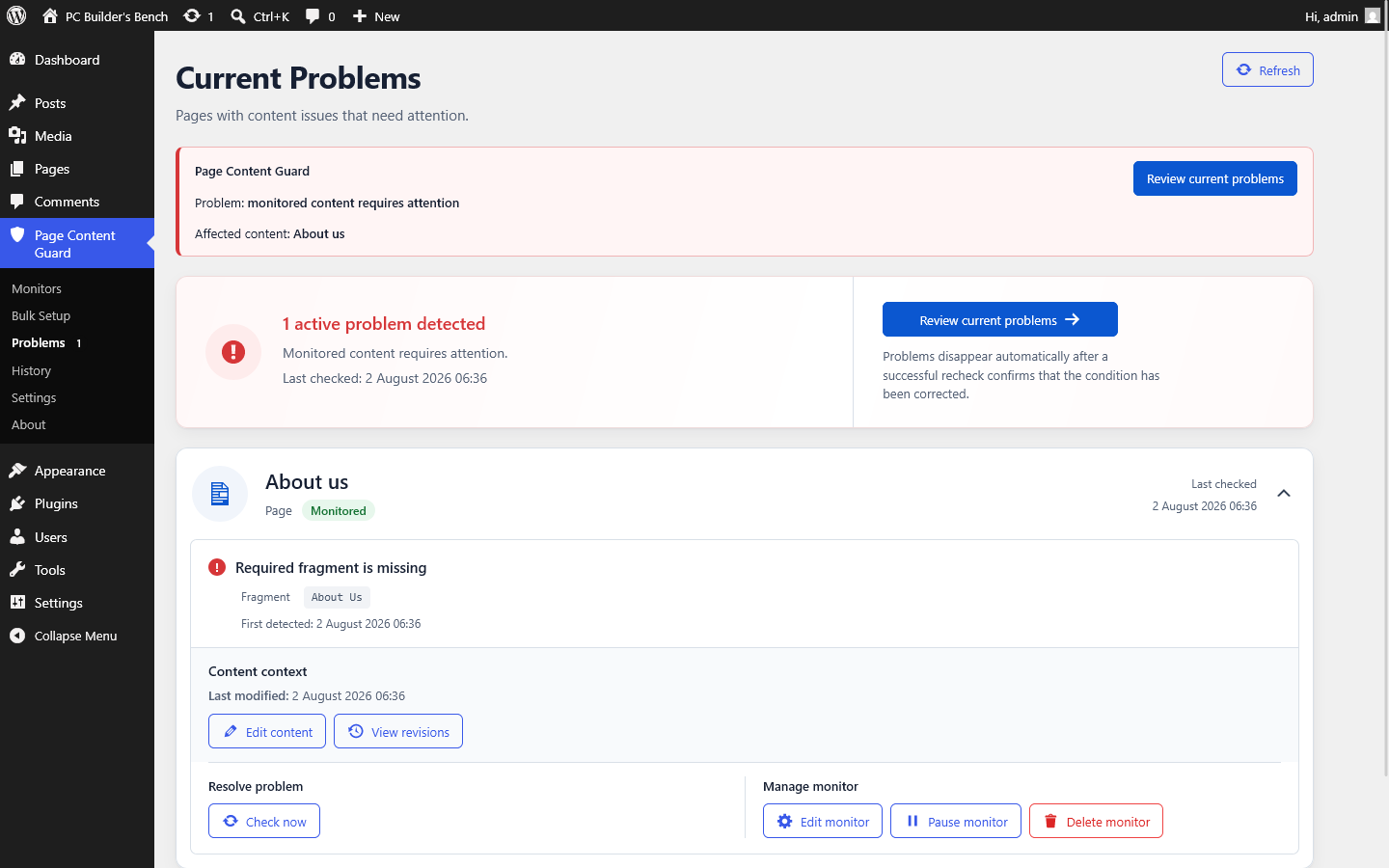
Current Problems
Current Problems is part of FREE and shows what is wrong now.
Issues are grouped by monitor and can include:
- content title snapshot
- content type
- issue description
- relevant fragment or old and current URL
- first detected time
- last checked time
- actions that match the issue
The page does not include acknowledgement, assignment, severity or notes workflows.
Fix the cause or accept an intentional baseline, then run a check. The current problem disappears when the condition passes.
Missing content
Meaning
The monitored WordPress record has been permanently deleted or is otherwise unavailable as the original target.
What To Do
- Confirm the content was meant to be deleted.
- If deletion was accidental, use an appropriate WordPress backup or recovery process outside Page Content Guard.
- If replacement content was created, create a new monitor for the new WordPress record.
- Delete the obsolete monitor only after the situation is understood.
Page Content Guard does not restore content or attach the old monitor to a new post.
Publication problem
Meaning
The monitored item is no longer in the expected published state.
What To Do
- Open the WordPress editor.
- Review the status and visibility.
- Restore publication if the change was accidental.
- Save the content.
- Run "Check now".
If the item is intentionally no longer public, pause or delete the monitor rather than leaving a permanent unexplained problem.
Expected URL changed
Meaning
The generated permalink no longer matches the accepted URL.
What To Do
Accidental change:
- restore the intended slug, parent or permalink configuration
- save
- check again
Intentional change:
- open the new public address separately and verify it
- consider redirects and external links
- use "Accept current URL"
- check again
After a site clone or migration, many URL problems can be legitimate. Pause monitors before the move where practical. PRO can accept verified current URLs in a bounded bulk workflow.
Stored title changed
Meaning
The exact WordPress title differs from the accepted title baseline.
What To Do
- restore the old title if the change was accidental
- accept the current title if the change is correct
- disable title integrity if exact titles are not useful for this content
Do not save and expect the baseline to change automatically. Acceptance is explicit.
Blank standard content
Meaning
Standard post_content is clearly blank under the plugin's supported check.
What To Do
- Open the editor and confirm where the content is stored.
- Restore standard content if it was removed accidentally.
- If the page uses builder-specific fields and empty post_content is normal, disable this check.
- Run a new check.
Required fragment missing
Meaning
One configured exact fragment is no longer present in standard post_content.
What To Do
- restore the fragment if it should remain
- correct the rule if it was too fragile or included accidental whitespace
- remove the rule if the requirement no longer exists
- confirm the page builder is not storing the visible text somewhere else
- run a new check
Forbidden fragment present
Availability
PRO
Meaning
A configured forbidden fragment is present in standard post_content.
What To Do
- remove the unwanted text from the content
- change or remove the rule if the phrase is valid in this context
- check whether an import or template inserted the text
- run a new check
Stored-value integrity changed
Availability
PRO
Meaning
The current exact stored post_content, excerpt or featured-image assignment differs from its accepted baseline.
What To Do
- Review the field and available WordPress revision context.
- Decide whether the change is accidental or intentional.
- Restore the old value or accept the current value for that field.
- Recheck.
A visually harmless edit can still change exact stored content. The issue is reporting a stored difference, not claiming damage.
Why a fixed problem can remain visible
Current Problems changes only after a check confirms the new state.
If the content was corrected but the issue remains:
- Save the WordPress content.
- Open Page Content Guard > Monitors.
- Select "Check now" for that monitor.
- Review any new issue details.
- Confirm the rule uses the exact stored text you expect.
If the check fails or does not complete, open Troubleshooting.
Problem actions and monitor actions
Resolve Problem
- Edit content
- Accept current URL when relevant
- Accept a current title or PRO baseline when relevant
- Check now
Manage Monitor
- Edit monitor
- Pause monitor
- Resume monitor
- Delete monitor
These are separate because clearing a warning and changing the monitoring policy are not the same job.
Current Problems and Incident History are different
Current Problems
- included in FREE
- represents current monitor state
- removes resolved problems after a successful check
- remains available when PRO is inactive
Incident History
- requires compatible PRO
- records one row for each uninterrupted issue period
- adds detected and resolved times
- supports filtering and CSV export
- is not reconstructed perfectly for periods when PRO was inactive
How an incident period works
A new issue opens one history row.
Repeated checks while that same issue remains present do not create duplicate rows.
When the issue disappears, the row receives a resolved time.
If the same issue returns later, a new row opens.
This is why History can show several separate incidents for one monitor without treating every check as a new event.
History after PRO was inactive
PRO history is preserved while PRO is inactive, but no complete paid history is recorded during that period.
After reactivation, open history rows are reconciled against current issue state during later checks.
If a problem appeared and resolved entirely while PRO was inactive, the plugin cannot recreate that missing incident from nothing.
Deleting or retaining history
Open incidents are never removed by automatic retention.
PRO can keep resolved history forever or remove resolved rows older than 30, 90, 180 or 365 days.
Retention runs through WordPress Cron and removes at most 500 eligible rows per UTC day.
A separate confirmed maintenance action can clear resolved history.
Exporting results
Availability
PRO
History export uses the filters currently applied to the History screen.
The UTF-8 CSV contains at most the newest 10,000 matching rows and applies spreadsheet-formula protection.
Treat exported files as potentially sensitive operational records. They can contain titles, issue context, machine identifiers and details needed to describe a change.
PRO Installation and Features
Reviewed for PRO 1.7.1
Add PRO when remembering manual checks, reviewing repeated changes or configuring monitors one by one starts costing you time.
PRO is an add-on, not a replacement. FREE still owns the monitors, check engine, current problems and shared administration screens, so install and keep both plugins active.
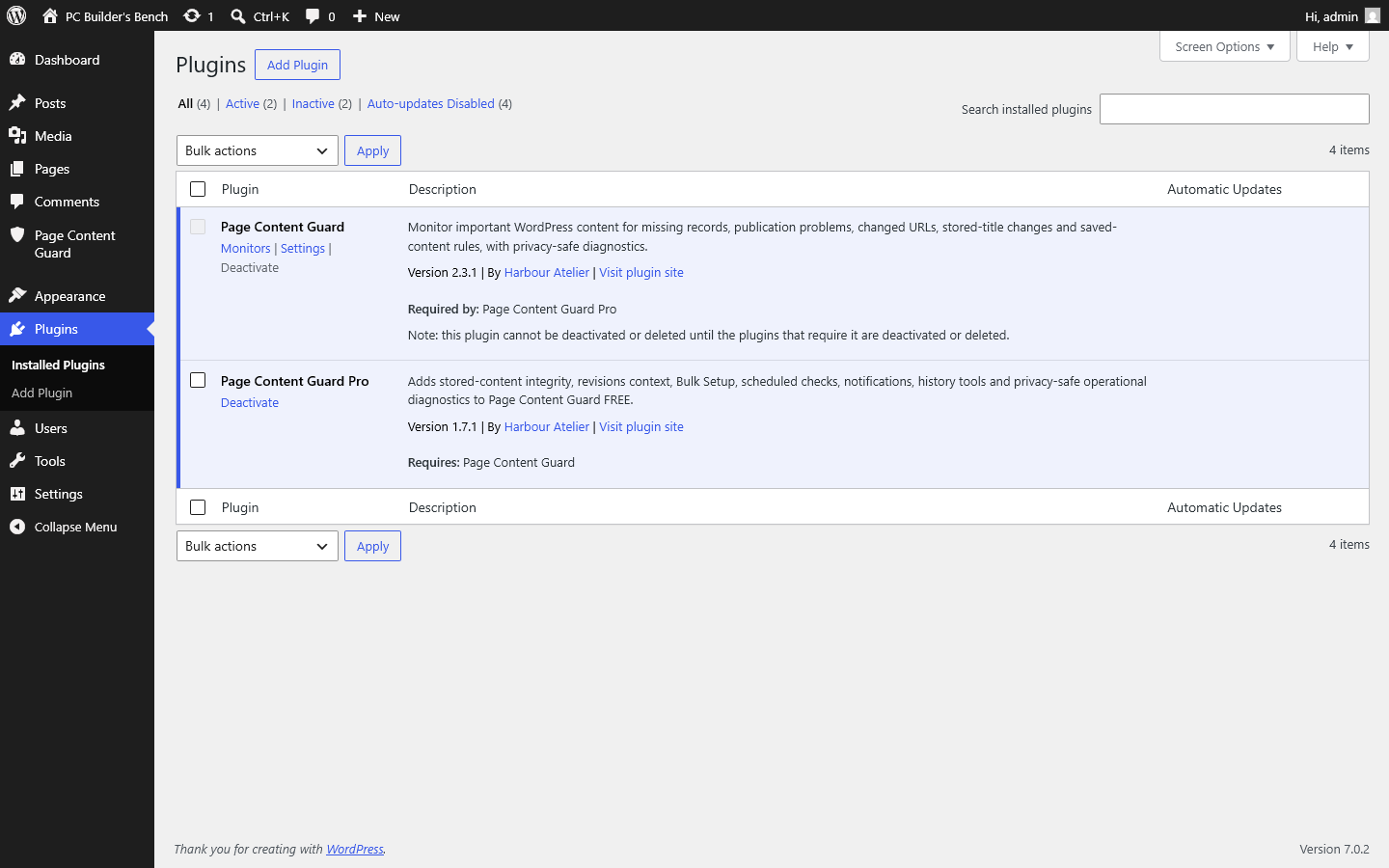
Requirements
Page Content Guard PRO 1.7.1 requires:
- WordPress 6.5 or newer
- PHP 7.4 or newer
- Page Content Guard FREE 2.3.1 or a compatible newer release
- FREE extension API 1.3 or a compatible newer release in major version 1
- individual-site activation
Network-wide Multisite activation is not supported.
If FREE is missing, inactive or incompatible, PRO remains inert and displays one administrator notice. It does not try to run a second monitor engine.
Install PRO
Steps
- Install and activate Page Content Guard FREE.
- Confirm that Page Content Guard > Monitors opens normally.
- Download the current PRO ZIP from the Gumroad purchase receipt or library.
- In WordPress, open Plugins > Add New Plugin > Upload Plugin.
- Choose the Page Content Guard PRO ZIP.
- Select "Install Now".
- Activate Page Content Guard PRO.
- Open Page Content Guard > Monitors.
- Confirm that PRO controls appear beside the related FREE controls.
- Open Page Content Guard > Settings and review the PRO settings.
Expected Result
PRO adds:
- Bulk Setup
- Incident History
- scheduled-check settings
- email and reminder settings
- history retention
- advanced integrity fields
- forbidden fragment fields
- PRO diagnostics
- Accept All Current URLs when relevant
The existing FREE monitors remain in place.
Initial settings
After activation, review these items before relying on automation.
Scheduled checks Confirm the intended frequency. Do not assume the default timing fits the site.
Notification recipients Check every address. PRO supports up to 20 unique valid addresses, one per line.
Test email Send one test message to one validated address. A successful result means WordPress accepted it for sending.
Open-problem reminders Leave them off unless repeated reminders are wanted.
Resolved-history retention "Forever" is the default. Choose a finite period only after deciding how much history the site needs.
Next scheduled event Confirm that WordPress reports a future event.
Where PRO controls appear
PRO does not create a second parallel administration area.
Paid controls are attached through the FREE extension API beside the related core controls.
Examples:
- exact stored-content, excerpt and featured-image checks appear with integrity settings
- forbidden fragments appear with content rules
- Accept All Current URLs appears with current URL problems
- PRO Site Health and dashboard rows extend the FREE diagnostics
Separate PRO pages are used only where the feature needs its own workflow, such as Bulk Setup and Incident History.
Manual update procedure
There is no automatic PRO updater.
Before updating:
- confirm a recent database backup exists
- keep FREE active
- download the latest PRO ZIP from Gumroad
- read the release notes supplied with the current plugin package
Update Steps
- In WordPress, open Plugins > Add New Plugin > Upload Plugin.
- Upload the newer PRO ZIP.
- Approve replacement of the current plugin when WordPress offers the option.
- Wait for the replacement to complete.
- Confirm both FREE and PRO remain active.
- Open Incident History.
- Open Settings.
- Confirm the next scheduled event.
- Review the most recent completed run and mail-attempt status.
- Run one manual check on a test monitor if the release changes monitoring behaviour.
A normal overwrite update preserves monitors, PRO settings, baselines and incident history.
Compatibility notice after an update
If PRO reports that FREE is missing or incompatible:
- Confirm both version numbers on the Plugins screen.
- Update FREE to the version required by PRO.
- Activate FREE.
- Reload the Page Content Guard administration page.
- Check Site Health if the notice remains.
Do not edit plugin headers or dependency constants to hide the notice. An inactive PRO is safer than running against an unsupported extension API.
What happens when PRO is deactivated
PRO stops:
- recurring and continuation cron work
- scheduled checks
- transition emails
- open-problem reminders
- incident-history updates
- PRO-only checks and bulk tools
PRO preserves:
- settings
- forbidden fragment rules
- exact-value baselines
- incident history
- stored PRO monitor configuration
FREE continues to run every non-paused monitor and every valid required fragment.
What happens when PRO is uninstalled
Uninstalling PRO does not delete shared or paid data by default.
There is no separate destructive cleanup option inside PRO.
Complete deletion is controlled by the FREE data-removal setting and happens only when FREE is deleted with that option enabled.
This arrangement prevents an accidental PRO removal from destroying monitor history and paid configuration.
Reactivating PRO
Steps
- Confirm compatible FREE is active.
- Install or activate the current PRO version.
- Open Settings and check scheduling.
- Review recipient addresses.
- Confirm the History screen opens.
- Run a manual check.
- Review any reconciliation activity or notices.
Existing PRO data returns when the compatible add-on is active.
History cannot recreate problems that both appeared and resolved entirely while PRO was unavailable.
Moving PRO to another site
The selected Gumroad plan determines how many sites the purchase covers, and the purchase terms continue to apply after a migration.
A WordPress database migration can carry monitor and PRO data to the new environment. Expected URLs may change because of the domain, protocol, path or permalink configuration.
Before or after a migration:
- pause monitors where practical
- verify the destination site
- review changed URLs
- accept only the correct new URLs
- check WP-Cron
- send a test email
- confirm no private production recipients remain on a staging copy
PRO feature map
Automation
Scheduled checks through WordPress Cron.
Notifications
Private transition summaries and optional reminders.
History
Open and resolved incident periods, filters, retention and CSV export.
Integrity
Exact stored post_content, excerpt and featured-image baselines.
Content Rules
Forbidden fragments alongside FREE required fragments.
Bulk Work
Bulk Setup, bounded Pause or Resume and Accept All Current URLs.
Diagnostics
Dependency, scheduler, history and latest WordPress mail-attempt information.
Email and Scheduling
Reviewed for PRO 1.7.1
Scheduling removes one very ordinary failure point: somebody forgetting to run the check.
It still depends on WordPress Cron, so treat the selected frequency as a recurrence, not an exact appointment with an external monitoring service.
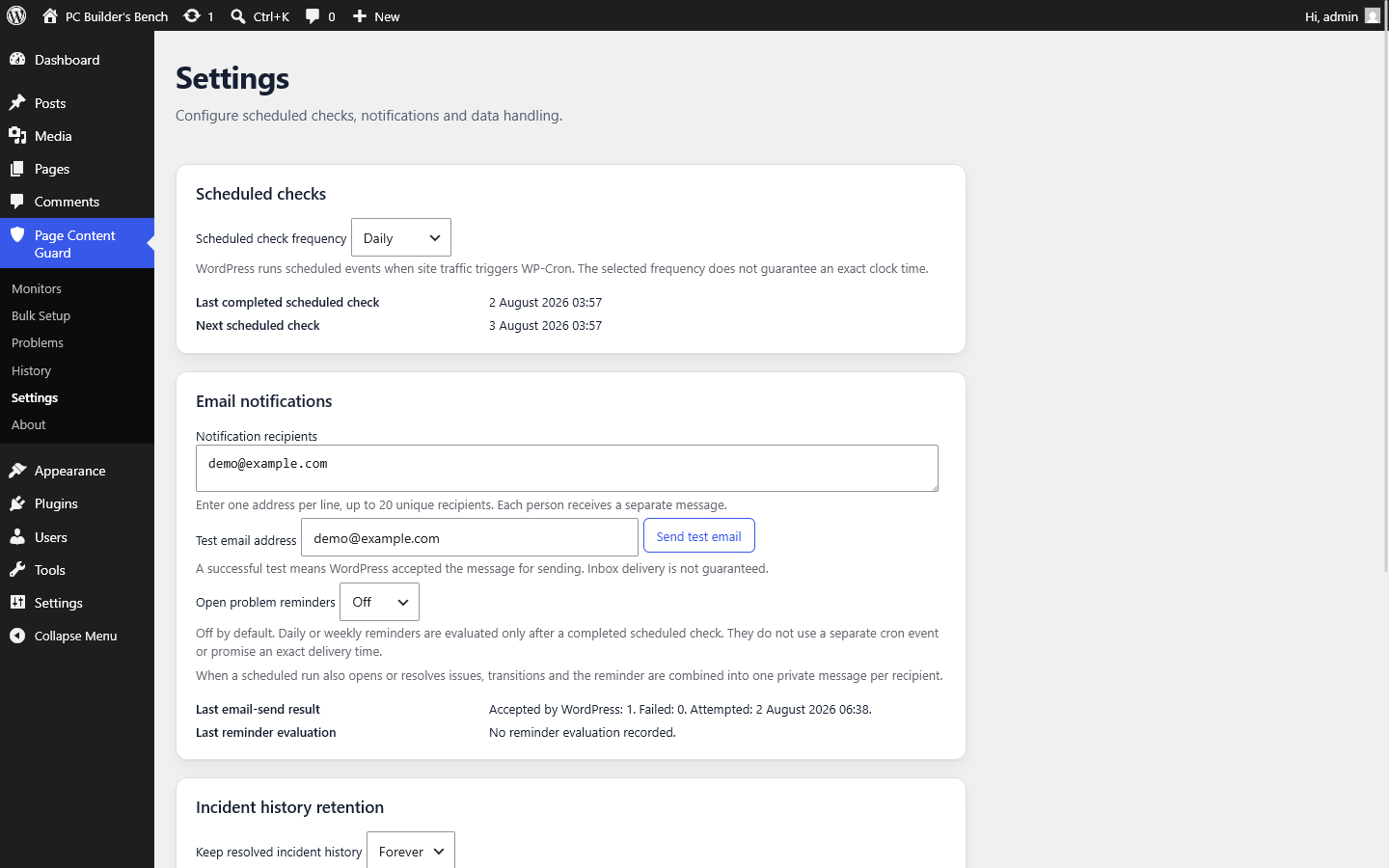
Available frequencies
PRO supports:
- hourly
- twice daily
- daily
- weekly
The selected frequency controls when WordPress should make the run due. The actual start depends on WordPress Cron being triggered.
How WordPress Cron affects timing
WP-Cron is request-driven.
On many sites, a due event runs when a visitor or another request reaches WordPress. A low-traffic site can therefore run late.
If DISABLE_WP_CRON is enabled, the site operator must provide an external request to wp-cron.php or an equivalent WP-CLI cron execution.
Page Content Guard cannot send an external warning that its own scheduler has stopped if WordPress Cron never runs. An overdue warning becomes visible when an administrator later opens WordPress.
What To Check
- Last completed scheduled check
- Next scheduled check
- Site Health scheduler result
- Whether DISABLE_WP_CRON is enabled
- Whether the hosting control panel has an external cron job
- Whether security or maintenance tools block wp-cron.php
Bounded scheduled runs
PRO checks larger monitor sets in bounded batches.
A run keeps operational progress such as its run ID, status, cursor, counts and timestamps. It does not store an unbounded list of translated issue messages in one option.
Continuation requests are designed to be idempotent. A repeated continuation should not intentionally reprocess a completed monitor ID.
This matters because WordPress requests can overlap or be interrupted.
Configure recipients
You can save up to 20 unique recipient addresses.
Enter one address per line.
PRO
- validates addresses
- reports invalid lines
- removes duplicates case-insensitively
- sends to each recipient separately
Separate messages prevent one recipient from seeing the complete list.
Use role addresses only if somebody is responsible for reading them. An alert sent to an unattended mailbox is not useful monitoring.
What creates a transition email
An email can report:
- newly opened issues
- newly resolved issues
An unchanged issue does not create the same transition email on every run.
A completed run with both new and resolved issues combines them into one message per recipient.
A run with no transitions sends no transition message.
What the message contains
The summary can include:
- site name and site URL
- run type
- completion time
- count of new and resolved issues
- content title and type
- concise issue description
- safe rule or URL context
- link to Current Problems
- edit link where available and permitted
Emails use a plain, readable structure with relevant issue details and administration links.
Open-problem reminders
Reminders are separate from transition emails.
They can be set to:
- off
- daily
- weekly
A reminder is evaluated after a completed scheduled run. It does not have its own independent cron event.
If a run produces transitions and a reminder is due, PRO combines them into one message for each recipient.
Reminders share the timing limitations of scheduled checks.
Send a test email
Steps
- Open Page Content Guard > Settings.
- Find Email notifications.
- Choose or enter one valid test address.
- Select "Send test email".
- Read the result carefully.
Success Means
WordPress accepted the message for sending.
Success Does Not Mean
- the hosting mail transport completed delivery
- the receiving server accepted it
- the message passed spam filtering
- it reached the inbox
The test sends to one address, not automatically to every saved recipient.
If the test does not arrive
Checklist
- Confirm the address is correct.
- Check spam, junk and quarantine folders.
- Wait long enough for the host's mail queue.
- Confirm ordinary WordPress mail works.
- Review the latest mail-attempt result in Page Content Guard.
- Review Site Health.
- Check the hosting provider's mail restrictions.
- Configure a reputable SMTP or transactional mail plugin if appropriate for the site.
- Send another test.
- Ask the mail provider to inspect logs if WordPress reports acceptance but delivery still fails.
Page Content Guard is not an SMTP plugin and does not keep a full delivery log.
If scheduled checks do not run
Checklist
- Confirm PRO is active and compatible.
- Confirm scheduling is enabled.
- Check the next scheduled event.
- Review Site Health.
- Check whether the site receives normal traffic.
- Check DISABLE_WP_CRON.
- Check any external cron job.
- Look for security rules blocking wp-cron.php.
- Run a manual check to separate scheduler trouble from monitor trouble.
- Deactivate and reactivate PRO only after recording the current diagnostic information.
Changing the schedule
Changing the frequency should replace the recurring schedule without intentionally creating duplicates.
After a change:
- Save the setting.
- Confirm the next scheduled event.
- Review the last completed run after the new schedule becomes due.
- Check for a stale or duplicate event in Site Health if the result looks wrong.
Email privacy
Recipient addresses are stored in the local WordPress database.
Issue context is passed to the site's configured WordPress mail system and sent to the selected recipients.
Do not send notifications to people who do not need the operational content. Messages can include page titles, issue descriptions, relevant fragments or URLs.
Troubleshooting
Reviewed for FREE 2.3.2 and PRO 1.7.1
Start with what actually happened, not with the component you suspect.
Changing several settings or reinstalling both plugins at once usually destroys the useful evidence. Record the versions and diagnostic result first, then change one thing at a time.
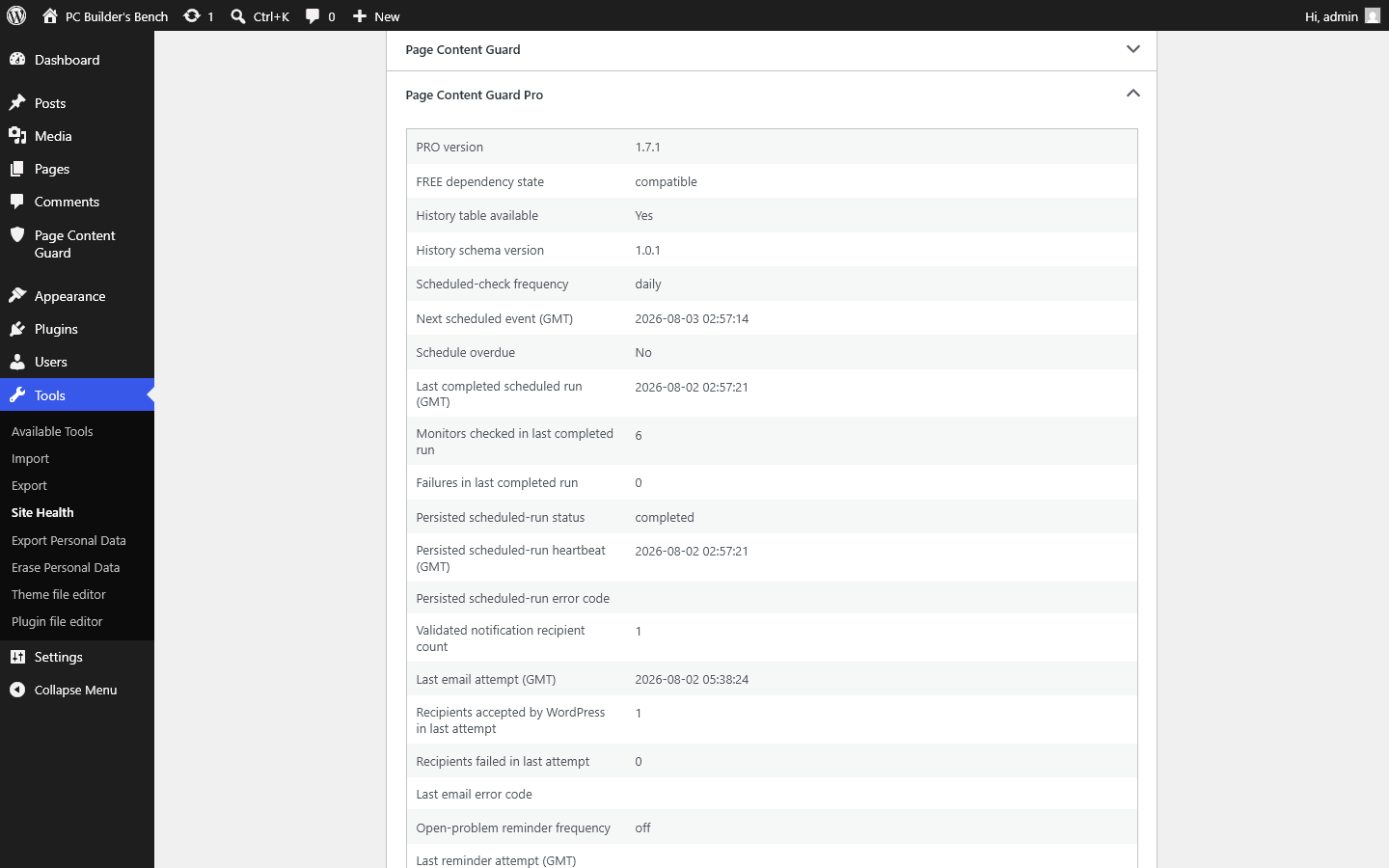
Basic checks
Checklist
- WordPress is 6.5 or newer.
- PHP is 7.4 or newer.
- Page Content Guard FREE is active.
- PRO, if used, is active and compatible.
- The monitor is not paused.
- The selected WordPress content record still exists.
- The current user has the required administrator capability.
- A fresh manual check completes.
- Site Health does not show a Page Content Guard schema or dependency problem.
A monitor did not detect a content change
Possible Cause
The change is outside the monitor's scope.
Check
- Was the change made to standard post_content?
- Was it stored in a page-builder field, post meta or an external service?
- Was the visible output generated by a shortcode or dynamic block?
- Is the relevant check enabled?
- Does the rule use the exact stored fragment?
- Was the monitor paused?
- Did a check run after the change?
Next Step
Run "Check now".
If the check passes but the public page still looks wrong, the problem may be in rendered output rather than the stored values Page Content Guard checks.
A required fragment looks present but is reported missing
Check
- Copy the configured fragment from the monitor.
- Open the WordPress code editor or inspect the stored content, not only the rendered page.
- Compare spaces, punctuation, HTML entities and shortcode attributes.
- Check whether a builder stores the visible text outside post_content.
- Shorten an unnecessarily fragile rule without making it meaningless.
- Save the monitor.
- Run a fresh check.
A browser can display equivalent text even when the stored sequence differs.
A stored-content issue opened after a harmless edit
Applies To
PRO
Explanation
Stored-content integrity is exact.
Block comments, whitespace, markup, imports and serialization can change the stored value even if the public page looks almost the same.
Options
- review the WordPress revision context
- restore the previous stored value
- accept the current value as the new baseline
- disable exact stored-content integrity if routine edits are expected
- use required fragments instead when only selected wording matters
A URL problem opened after migration
Explanation
Expected URLs often change after a clone, staging move, domain change, HTTPS change, subdirectory change or permalink update.
Steps
- Confirm the destination site and domain are correct.
- Check the public URL.
- Check required redirects.
- Review whether the old monitor belongs on the destination.
- Accept the current URL only after verification.
- For many correct URL changes, use the PRO bulk acceptance workflow.
- Run another check.
Do not accept staging URLs on a production monitor.
A problem remains after the page was fixed
Steps
- Save the WordPress content.
- Run "Check now".
- Read the updated issue, not the old assumption.
- Confirm the exact rule.
- Clear any failed or interrupted check notice.
- Review Site Health if the check does not complete.
Current Problems is not cleared merely because the editor was opened. A successful recheck must confirm the condition.
The monitor is stuck as unchecked
Check
- Run a single manual check.
- Confirm the target content is eligible.
- Check for a database or schema notice.
- Review PHP and WordPress error logs.
- Review the Page Content Guard Site Health section.
- Confirm no security plugin blocks the administration request.
- Check whether the monitor record is reported malformed.
Do not repeatedly click bulk checks while a single check is failing.
PRO controls are missing
Check
- Confirm FREE is active.
- Confirm PRO is active.
- Confirm FREE 2.3.2 and PRO 1.7.1, or a documented compatible pair.
- Reload the administration page.
- Read the dependency notice.
- Review Site Health.
- Check that the PRO directory is page-content-guard-pro and the main plugin file is present.
- Reinstall the current PRO ZIP if files are incomplete.
PRO remains inert when the FREE dependency is missing or incompatible.
Scheduled checks are late or absent
Check
- Is scheduling enabled?
- Is the next event visible?
- Has the site received traffic?
- Is DISABLE_WP_CRON enabled?
- Is an external cron trigger configured?
- Does the hosting provider block loopback or cron requests?
- Is a previous run marked stale or failed?
- Does a manual check work?
A selected frequency is not an exact-time guarantee.
The email test says success, but the message is missing
Explanation
Success means WordPress accepted the email for sending.
Check
- spam and quarantine
- exact recipient spelling
- hosting mail restrictions
- domain SPF, DKIM and DMARC setup
- SMTP plugin configuration
- mail-provider logs
- the latest Page Content Guard mail-attempt status
Page Content Guard does not know what happened after WordPress handed the message to the configured mail system.
No email was sent for an unchanged problem
Explanation
This is normal for transition summaries.
PRO sends when an issue opens or resolves. It does not repeat the same transition on every run.
Enable daily or weekly open-problem reminders if repeated messages are required.
History is missing an incident
Check
- Was compatible PRO active when the incident opened and resolved?
- Did the relevant check complete?
- Is a filter hiding the row?
- Is the date range correct?
- Has resolved-history retention removed it?
- Was resolved history cleared manually?
- Is the history schema healthy?
A problem that appeared and resolved entirely while PRO was inactive cannot be reconstructed.
CSV export has fewer rows than expected
Check
- Review the active History filters.
- Review the selected date range.
- Check whether retention removed older resolved rows.
- Remember that export includes at most the newest 10,000 matching rows.
- Confirm the export completed rather than being interrupted.
Bulk Setup stopped before completion
Check
- Did the source monitor change during the run?
- Did the administrator session expire?
- Did a database write fail?
- Is another bulk run active?
- Did the selected set exceed 100 items?
- Does Site Health show stale run state?
- Are all targets still published and eligible?
Bulk Setup processes batches of 25 and stops rather than applying mixed source policy when the source changes.
Pause or Resume did not affect every selected monitor
Check
- Confirm no more than 100 monitors were selected.
- Review the operation result counts.
- Check for malformed monitor records.
- Check permissions and nonce expiry.
- Reload the Monitors screen.
- Review Site Health if a partial failure is reported.
Configuration and issues are preserved during Pause and Resume.
The plugin shows a schema or migration problem
Steps
- Record the exact machine error code.
- Confirm the plugin versions.
- Confirm the database user can create and alter the required plugin tables.
- Back up the database.
- Reload the administration page to allow a documented retry.
- Check the WordPress and PHP error logs.
- Use the appropriate support route and include the diagnostic report if the retry fails.
Do not manually change schema-version options unless support has reviewed the case.
The WordPress site was restored from backup
Check
- monitor records match the restored posts
- expected URLs match the restored environment
- PRO history time order is understandable
- scheduler state is current
- recipient addresses are appropriate
- no staging recipient list was copied to production
- a manual check completes
- the next scheduled event is present
A database restore can move Page Content Guard data backwards with the rest of the site.
A cache shows old public content
Explanation
Page Content Guard does not inspect the cached public page.
It can report the current stored WordPress state while a CDN, page cache or reverse proxy still serves older output.
Purge or investigate the cache separately.
Prepare a useful support report
Include
- WordPress version
- PHP version
- Page Content Guard FREE version
- Page Content Guard PRO version, if active
- whether Multisite is involved
- exact steps that reproduce the issue
- expected result
- actual result
- relevant machine error code
- Site Health diagnostic section
- whether the problem occurs in a manual single check
- whether the content uses a page builder or custom fields
Do Not Include
- passwords
- API keys
- full database exports
- customer personal data
- private page content unless support specifically asks for a minimal redacted example
- public exploit details for a suspected vulnerability
Security problems
Do not post suspected vulnerabilities, credentials or private site data in the public WordPress.org forum or the Gumroad Community.
Report suspected vulnerabilities affecting FREE or PRO privately to [email protected]. This address is only for security reports, not general support.
Include the affected plugin version, a concise technical description, reproducible steps and the potential impact. Do not send passwords, credentials, database exports or unnecessary personal information.
Compatibility and Limitations
Reviewed for FREE 2.3.2 and PRO 1.7.1
This is where I would rather be precise than reassuring: Page Content Guard is deliberately narrow.
It monitors supported WordPress records and stored values. It cannot understand every way a theme, builder or external service assembles the public page, and the limits below matter before you rely on a rule.
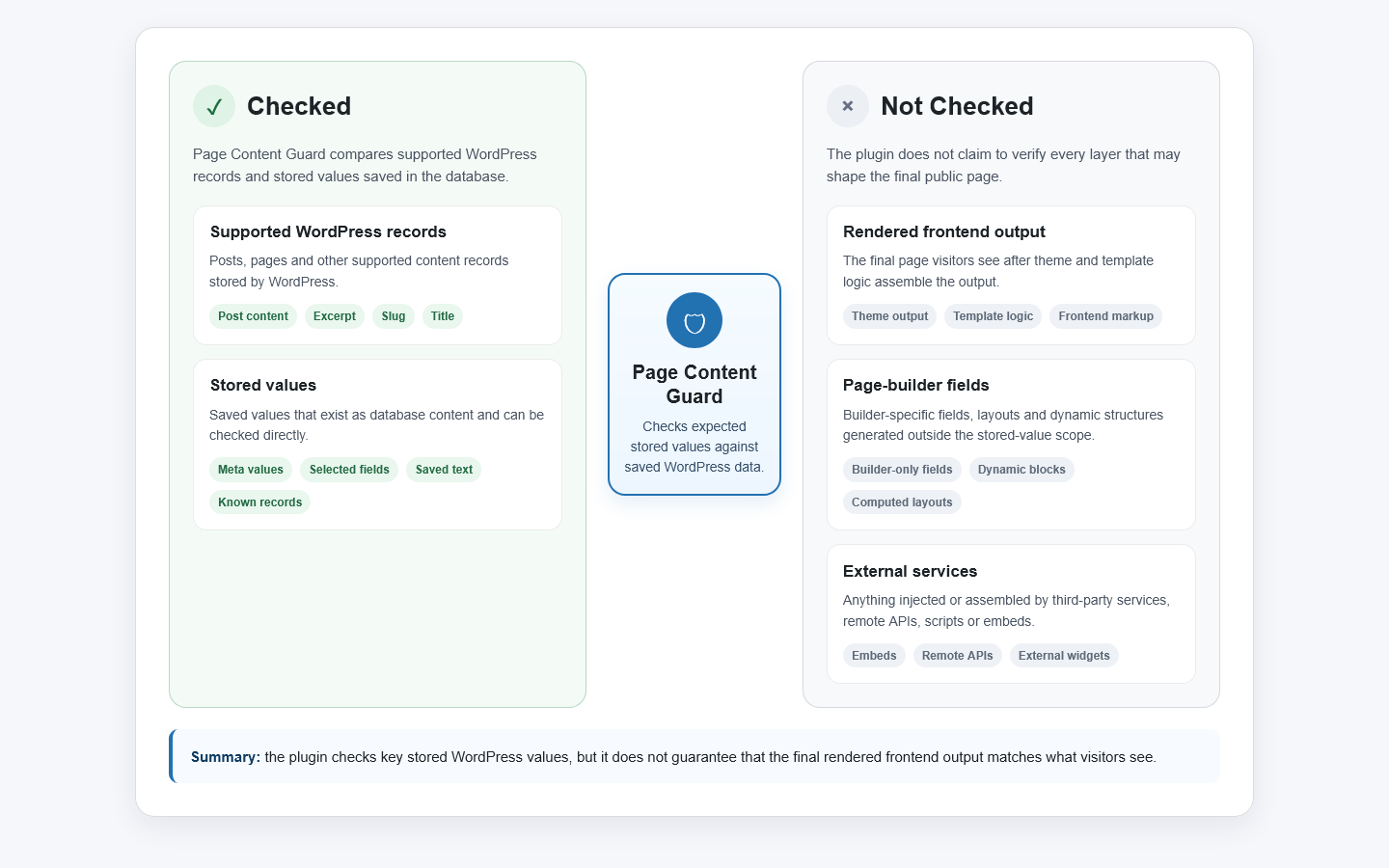
Supported platform
Current minimum requirements:
- WordPress 6.5
- PHP 7.4
Current package compatibility metadata:
- tested up to WordPress 7.0
- FREE 2.3.2
- PRO 1.7.1
Compatibility metadata should be updated only after actual testing.
Eligible content
The plugin is intended for:
- pages
- posts
- supported public custom post types
A content type must meet the plugin's eligibility rules and provide the fields required by a selected check.
A monitor belongs to a WordPress content record. External URLs are not eligible targets.
Page builders
Page builders vary widely.
Usually useful:
- content existence
- publication status
- expected URL
Needs verification:
- blank standard content
- required fragments
- forbidden fragments
- exact stored post_content integrity
Those content checks inspect standard post_content. They do not automatically inspect builder-specific post meta, custom tables or remote layout services.
Before relying on a rule:
- Save the page.
- Inspect where the relevant content is stored.
- Create a test monitor.
- Make a controlled test change.
- Run a check.
- Confirm the result matches the intended protection.
Shortcodes and dynamic blocks
Page Content Guard can detect literal shortcode text stored in post_content.
It does not execute the shortcode.
It also does not render dynamic blocks or query their external data sources.
A required shortcode fragment confirms that the saved shortcode text remains present. It does not confirm that the shortcode output works.
Custom fields and post meta
Version 2.3.2 and PRO 1.7.1 do not provide a general custom-field monitoring system.
Featured-image integrity is a specific supported PRO check. Arbitrary ACF fields, builder settings and plugin-owned metadata are outside the general content rules unless explicitly documented.
WordPress revisions
Revision links can appear when:
- the monitored post still exists
- revisions are enabled
- relevant revisions remain available
- the current user has permission to edit the content
Revisions are optional context.
A check does not pass or fail based on revision availability. Revision cleanup can remove old comparison context without removing the accepted baseline.
Multisite
Network-wide activation is not supported.
FREE and PRO may be activated individually on an intended site within a Multisite installation.
Test database prefixes, cron and email separately for each site.
Multilingual content
Translated posts may be monitored as separate WordPress content records.
There is no WPML, Polylang or other translation-plugin-specific integration in the current release.
Translation plugins can affect URLs, post relationships and storage. Test each language record rather than assuming one monitor covers every version.
Imports, migrations and cloning
Imports and migrations can change:
- post IDs
- domains
- protocols
- paths
- generated permalinks
- block serialization
- excerpts
- attachment IDs
- cron state
- recipient settings
Pause monitors before planned work where practical.
After the move:
- verify the destination
- review expected URLs
- check important baselines
- confirm mail recipients
- confirm the next scheduled event
- run manual checks
A monitor cannot follow content to a new post ID by guessing.
Caching and CDNs
Page Content Guard reads WordPress records.
It does not request or inspect:
- page-cache output
- CDN output
- reverse-proxy output
- search-engine cache
- browser cache
A current stored value and a cached public page can disagree.
Forms
The plugin does not submit or validate forms.
A required fragment can confirm that saved form markup or a shortcode remains in standard post_content. It cannot confirm that submission, validation, email delivery or external CRM integration works.
Availability and redirects
The expected URL check compares the generated permalink with the accepted URL.
It does not make an HTTP request, follow redirects, inspect status codes or confirm DNS and TLS.
Use a separate uptime or HTTP-monitoring service for those jobs.
Visual appearance
The plugin does not compare screenshots, CSS, layouts, fonts, images or responsive rendering.
Featured-image integrity checks the assigned attachment ID, not the pixels a visitor sees.
Security
Page Content Guard is not a firewall, malware scanner, access-control system or backup product.
It can report supported stored changes after they occur. It does not prevent an authorised or unauthorised edit and cannot restore damaged content.
Legal and regulatory wording
The plugin can check whether selected stored wording is present or whether exact supported stored content changed.
It cannot decide whether a privacy notice, disclaimer, policy or contract is correct, complete or current.
Do not describe the plugin as making a site GDPR compliant, UK GDPR compliant or legally compliant.
WordPress Cron
PRO scheduled checks and finite history retention depend on WordPress Cron.
Selected frequency is not an exact-time guarantee.
When WP-Cron is disabled, an external trigger is required.
PRO hands notification content to the site's configured WordPress mail system.
A successful WordPress result is not proof of inbox delivery.
Use appropriate mail infrastructure and monitor it separately where email is operationally important.
Fixed Limitation Statement
Page Content Guard checks content and metadata stored in WordPress. It does not load the public page, execute forms or verify the rendered design.
Data, Privacy and Uninstall
Reviewed for FREE 2.3.2 and PRO 1.7.1
Your monitors and their operational data stay inside the WordPress site.
Nothing is sent to Harbour Atelier. PRO email uses the mail system already configured for the site, so you remain responsible for who receives those summaries and where exported files are stored.
What FREE stores
FREE can store:
- monitor configuration
- target WordPress content ID
- retained title, content type and expected URL context
- enabled checks
- required content fragments
- current issue state
- first-detected and last-checked times
- run and operational timestamps
- stored-title integrity fingerprint and baseline time
- bounded display context for supported integrity information
- optional WordPress revision IDs
- schema and migration state
- diagnostics and temporary bounded run state
- the explicit uninstall-cleanup preference
The exact internal format may change between compatible releases. Do not build an external integration by reading private database fields when a documented extension hook is available.
What PRO stores
PRO can store:
- forbidden content fragments
- exact stored post_content fingerprints
- excerpt baseline data
- featured-image attachment IDs
- baseline timestamps
- optional WordPress revision IDs
- incident history
- scheduler settings
- recipient addresses
- reminder settings and anchors
- resolved-history retention policy
- scheduler, mail and maintenance diagnostics
- bounded scheduled-run state
- bounded Bulk Setup state
- URL-migration state
- locks and reconciliation state
Full post_content is not copied into the exact-content integrity baseline.
History and notifications may contain enough field context to identify a change.
Where monitoring runs
Page Content Guard performs its monitoring inside the WordPress installation and stores plugin data in that site's database.
PRO uses the site's WordPress mail and cron configuration for notifications and scheduling. Links opened by an administrator behave like normal external links.
Email notifications
Applies To
PRO
When email is enabled, issue summaries are passed to the site's configured WordPress mail system and sent separately to selected recipients.
Those summaries may contain:
- site name and URL
- content title and type
- issue description
- safe fragment or URL context
- links into WordPress administration
Choose recipients who are authorised to receive that operational information.
Page Content Guard does not control processing performed by the hosting mail service, SMTP provider or recipient mail provider.
CSV exports
Applies To
PRO
A History CSV can contain operational data visible in History, machine identifiers and details JSON.
Exports are generated on administrator request and can contain sensitive site context.
Store, share and delete exported files according to the site's own security and retention rules.
The plugin cannot remove copies that were downloaded to another device.
Data retention
Current Problems
Remain with the monitor until the issue resolves, the monitor is removed or plugin data is completely deleted.
Pro History
Resolved incidents are kept forever by default.
An administrator can choose 30, 90, 180 or 365 days for resolved rows.
Open incidents are never deleted automatically.
Finite retention runs through WordPress Cron and deletes no more than 500 eligible rows per UTC day.
Deactivation is not deletion
Free Deactivation
Preserves monitors, current problems, settings and PRO data.
PRO becomes inert because its dependency is inactive.
Pro Deactivation
Stops paid runtime behaviour and scheduled work.
Preserves PRO settings, rules, baselines and history.
Uninstall is also conservative by default
Deleting either plugin does not automatically mean all data disappears.
PRO uninstall preserves paid and shared data.
FREE uninstall checks the explicit cleanup preference.
If cleanup is off, which is the default, Page Content Guard data is preserved.
If cleanup is on, deleting FREE removes Page Content Guard FREE and PRO tables, settings, bounded run state and scheduled events.
It does not delete WordPress posts, post meta owned by other plugins or unrelated site data.
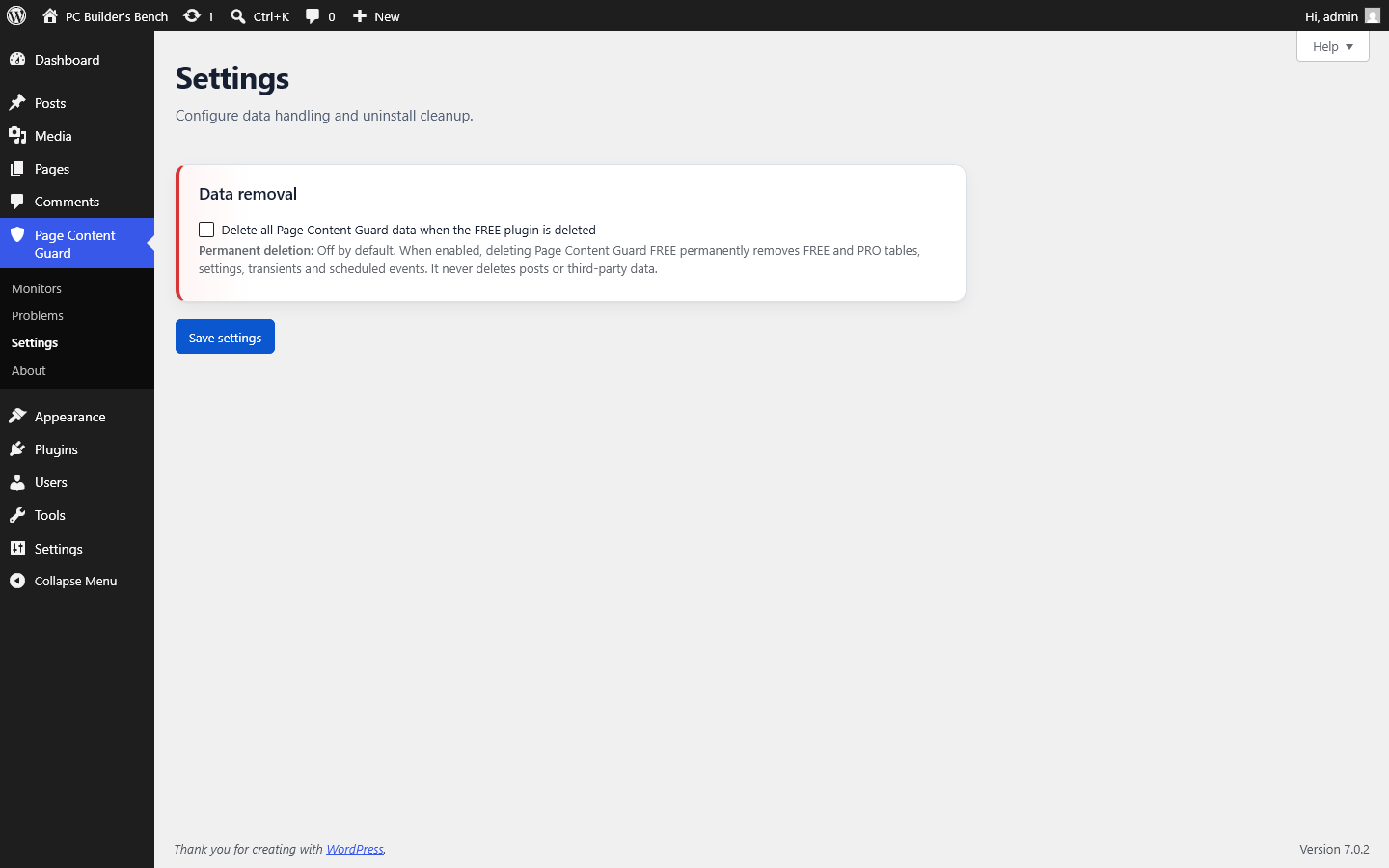
Remove all Page Content Guard data
Warning
This action is destructive. Back up the database first if there is any chance the monitors or history will be needed again.
Steps
- Confirm compatible FREE is active.
- Open Page Content Guard > Settings.
- Find Data removal.
- Enable "Delete all Page Content Guard data when the FREE plugin is deleted".
- Save the setting.
- Export any PRO history that must be retained.
- Deactivate PRO.
- Delete PRO if it is no longer needed.
- Deactivate FREE.
- Delete FREE through the WordPress Plugins screen.
- Confirm the plugins are removed.
- Review Site Health or the database only if there is a specific reason to verify cleanup.
The cleanup preference takes effect when FREE is deleted, not merely deactivated.
Preserve data during a temporary removal
Leave the cleanup preference off.
Take a database backup.
After reinstalling:
- install compatible FREE first
- activate it
- install and activate PRO if used
- review monitors
- review History
- confirm scheduling
- confirm recipient addresses
- run a manual check
Privacy-policy wording for a site using the plugin
WordPress includes a privacy-policy content tool. Page Content Guard registers suggested wording describing its local operational data.
The site owner remains responsible for deciding whether that wording applies, adapting it to the site's setup and explaining any email or export handling.
Do not claim that using Page Content Guard makes the site legally compliant.
Data subject requests
The current plugin does not add visitor accounts or store records indexed by a visitor's email address.
Notification recipients are administrator configuration, not a visitor database.
Administrators can edit or remove recipients directly and can remove plugin data through the documented cleanup control.
The site's wider data-protection process still applies to exported CSV files, security-report emails, support discussions and any personal information an administrator chooses to place inside a monitored fragment.
Before contacting support
A useful report starts with three simple checks
- Confirm the installed FREE and PRO versions.
- Open Tools > Site Health > Info and review the Page Content Guard section.
- Describe what actually happened, not only the feature you expected to be responsible.
After the FREE plugin is published, use its WordPress.org forum for FREE support. Use the private Gumroad Community for PRO support. A suspected vulnerability belongs only in the private security email, never in a public support thread.
Do not send passwords, database exports or private content.